Paper Submission Guide
Step-by-step guide to submit and manage your paper on confspace.id
1 Prerequisites
Before you can submit a paper, make sure you have:
- Completed your user profile
- Registered for a conference that accepts paper submissions
Each submission is tied to one of your registrations. If you haven't registered yet, follow the Conference Registration guide first.
2 Creating a Submission
Start a submission from the registration you want to submit a paper for:
- Open your registration details page from My Registrations
- Click the Create Submission action
- Enter the paper Title, Abstract, and Keywords (comma-separated)
- Select the most relevant Submission Topic
- Click Create Submission to save your draft
Each registration can have one submission. Your new submission starts in Draft status, so you can keep editing it before it goes under review.
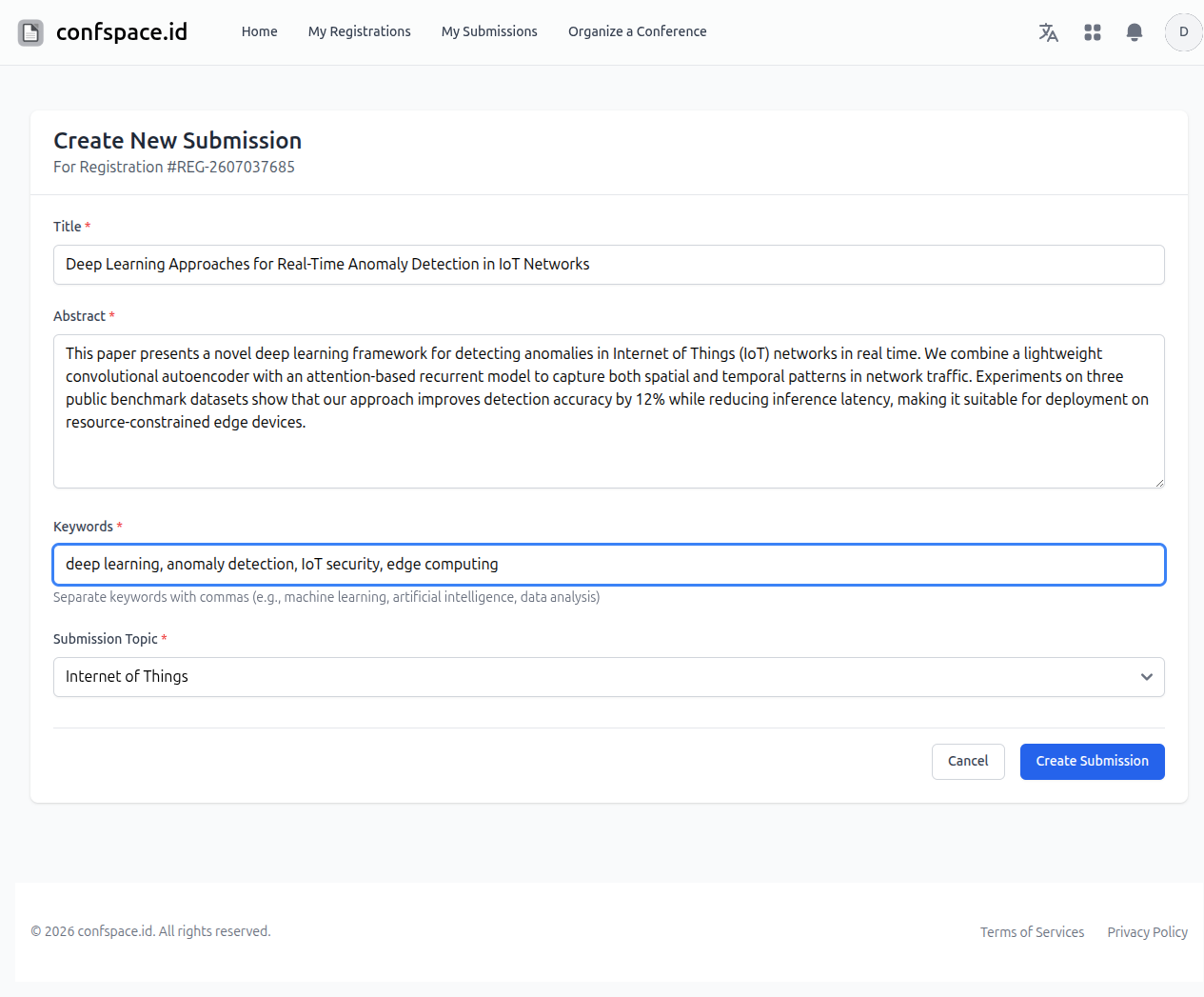
Screenshot: Create submission form with title, abstract, keywords and topic
3 Viewing Your Submissions
All of your submissions are listed under My Submissions in the main navigation:
- Review the title, conference, submission date, and status at a glance
- Use the search box to find a submission by its title
- Click Detail to open and manage a submission
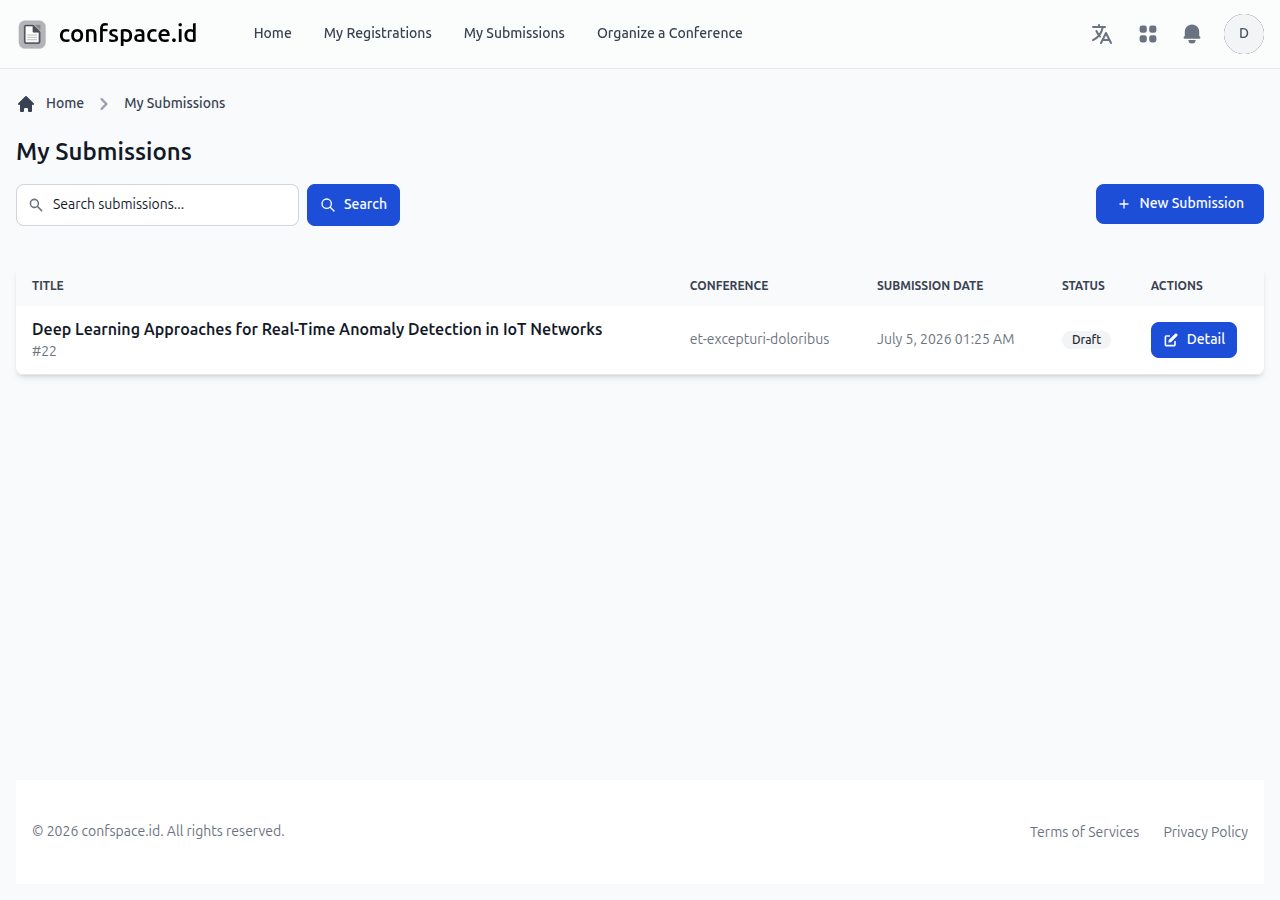
Screenshot: My Submissions list with search and status
4 Managing Submission Details
The submission details page brings everything together in one place:
- Conference Information — the conference, path, and registration type
- Paper Details — title, abstract, keywords, and topic (use Edit to update them)
- Required Documents — upload your paper files
- Authors — add and manage co-authors
- Review Results — feedback once reviewers have assessed your paper
- Quick Actions & Summary — return to registration, edit, view reviews, and status overview
You can freely edit paper details while the submission is still in Draft. Once reviewing begins, some actions become read-only.
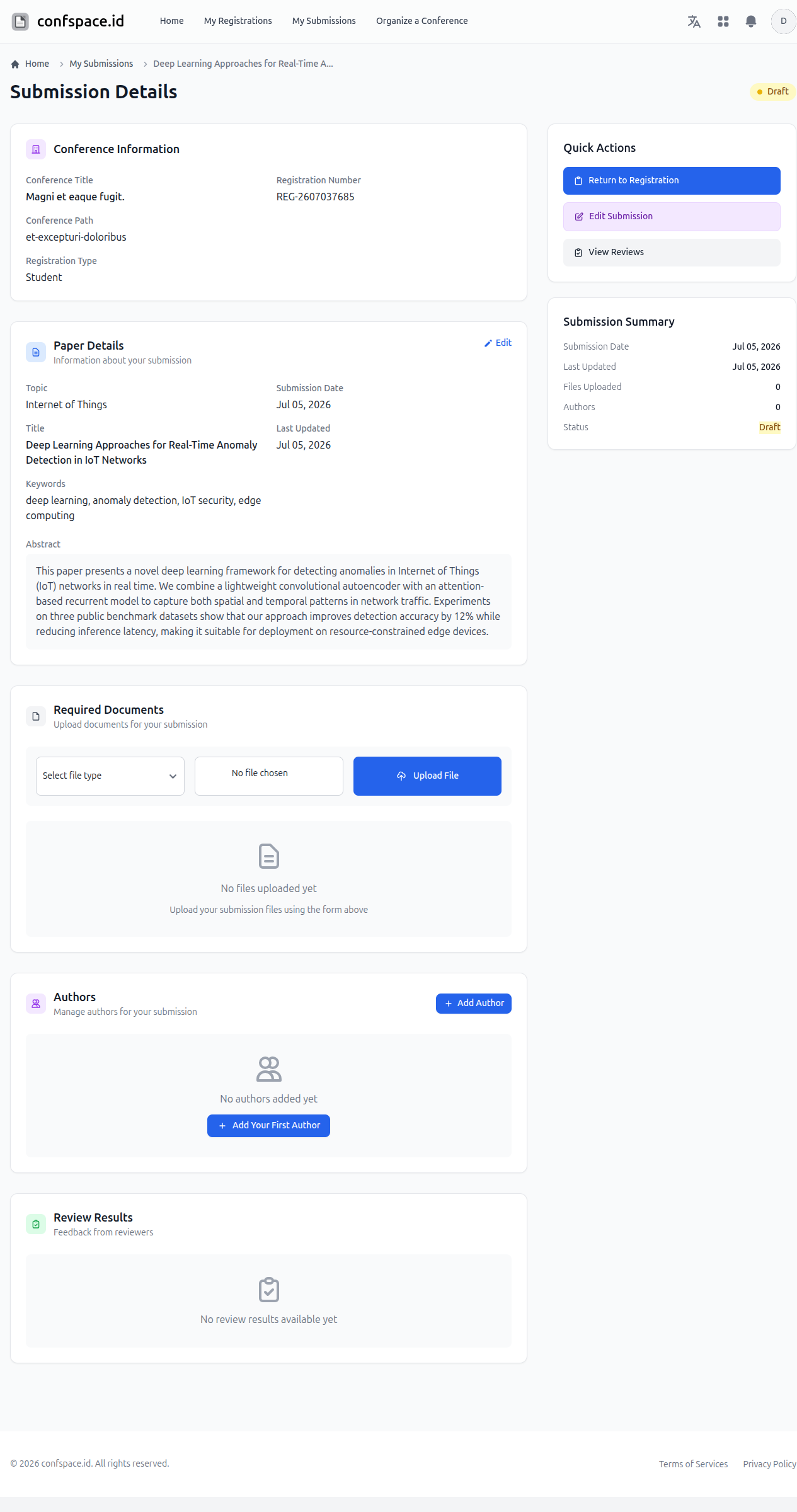
Screenshot: Submission details with documents, authors, and review sections
5 Uploading Paper Documents
Upload your manuscript and any supporting files in the Required Documents section:
- Choose the document type from the Select file type dropdown
- Click to choose your file from your device
- Click Upload File
- Uploaded files appear in the list below, where you can download or delete them
The document types available depend on what the conference organizer configured. Make sure you upload every required document before requesting verification.
6 Adding Co-Authors
List everyone who contributed to the paper in the Authors section:
- Click Add Author (or Add Your First Author)
- Enter the co-author's details
- Save the author — they appear in the authors list
- Edit or remove an author any time before final acceptance
The author order you set here is used on your Letter of Acceptance and other generated documents, so add authors in the correct order.
7 Understanding Submission Status
Your submission moves through several states as it is reviewed:
- Draft Editable by you and not yet submitted for review.
- In Review Assigned to reviewers and being evaluated by the conference.
- Revision Submitted Your revised version has been sent back to the reviewers.
- Revision Required Reviewers asked for changes — update your paper and submit a revision.
- Accepted Congratulations — your paper was accepted and you can download your Letter of Acceptance.
- Declined The paper was not accepted; open the submission to read the reviewers' feedback.
8 Submitting a Revision
When your submission is marked Revision Required:
- Read the reviewers' comments in the Review Results section
- Update your paper details and re-upload the revised document if needed
- In the Submit Your Revision form, describe the changes you made in the Revision Notes
- Click Submit Revision to send it back to the reviewers
After you submit a revision, the status changes to Revision Submitted and the reviewers are notified to re-evaluate your paper.
9 Downloading Your Letter of Acceptance
Once your paper is Accepted and the organizer has enabled it:
- Open your submission details page
- In the Quick Actions panel, click Download LoA
- Your Letter of Acceptance is generated as a PDF you can save or print
The Download LoA action only appears when the submission is accepted and the conference organizer has made the Letter of Acceptance available.
Need More Help?
If you need additional assistance with your submission:
- Contact the conference organizers through their conference page
- Review the Conference Registration guide for registration steps
- Use the contact form on confspace.id for platform-related issues