Participant Registration Guide
Step-by-step guide to register for conferences on confspace.id
1 Prerequisites
Before you can register for a conference, you need to:
- Create an account and verify your email
- Complete your user profile with all required information
If your profile is incomplete, you'll be redirected to the profile creation page when trying to access registration.
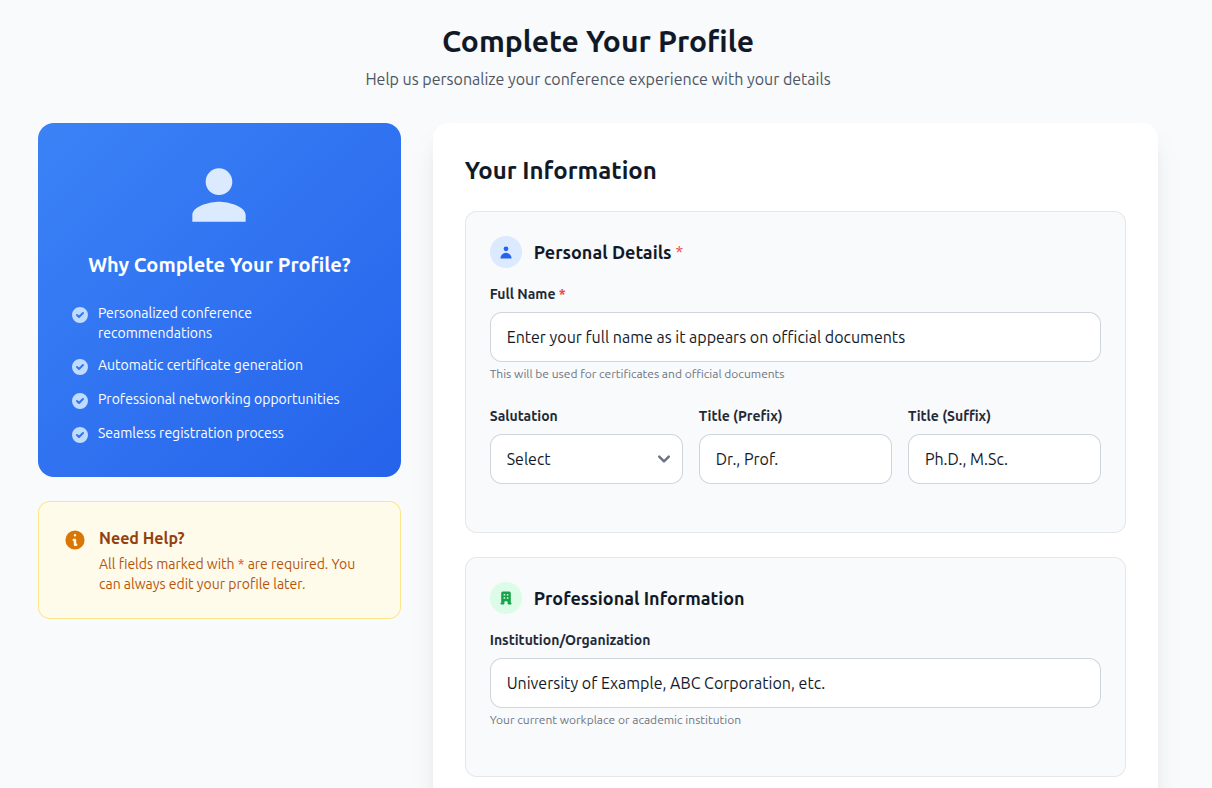
Screenshot: Profile completion required message
2 Finding a Conference
Browse available conferences and find the one you want to register for:
- Visit the conferences listing page
- Use the search function to find specific conferences
- Click on a conference to view its details
- Review conference information, dates, and requirements
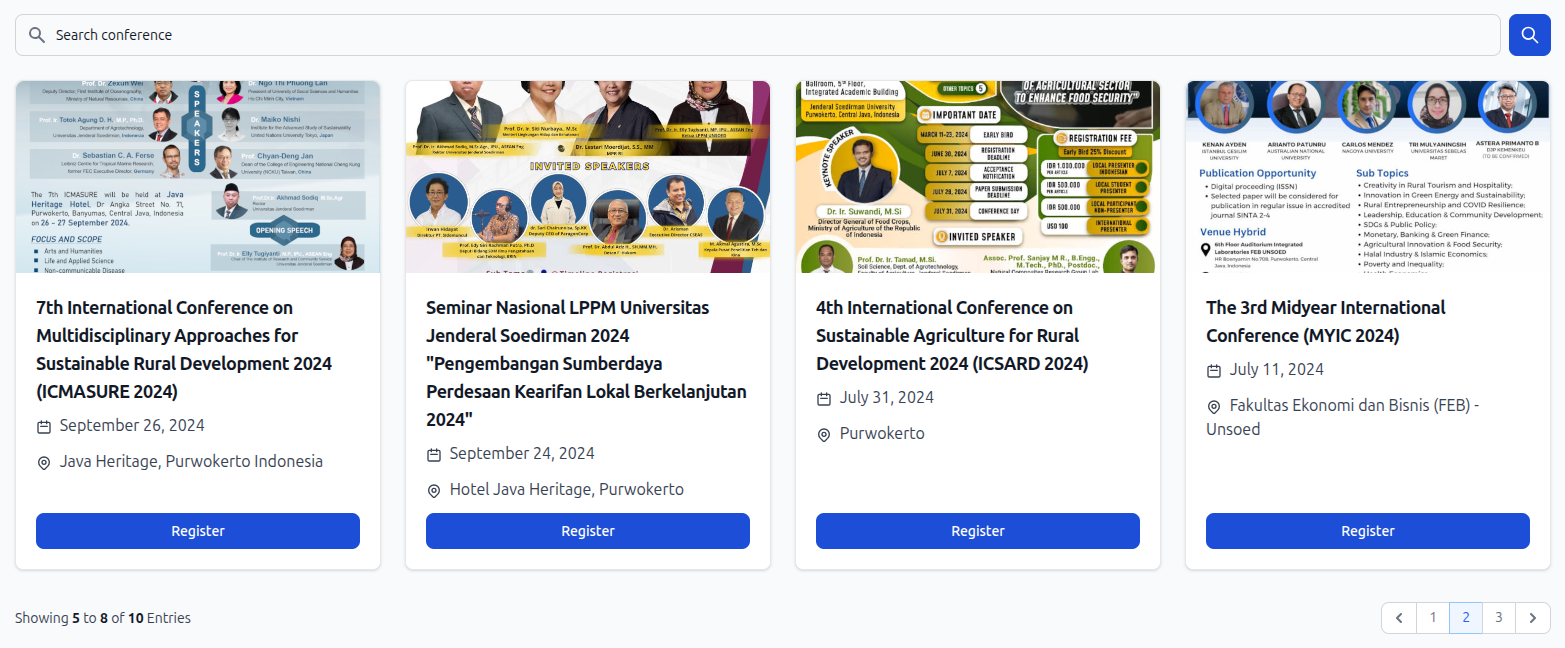
Screenshot: Conference listing with search functionality
3 Creating Registration
Once you've found a conference you want to join:
- Click the "Register" button on the conference page
- Select your registration type (author, attendee, etc.)
- Review the registration fee if applicable
- Submit your registration
Upon successful registration, you'll receive a unique registration number and be redirected to your registration details page.
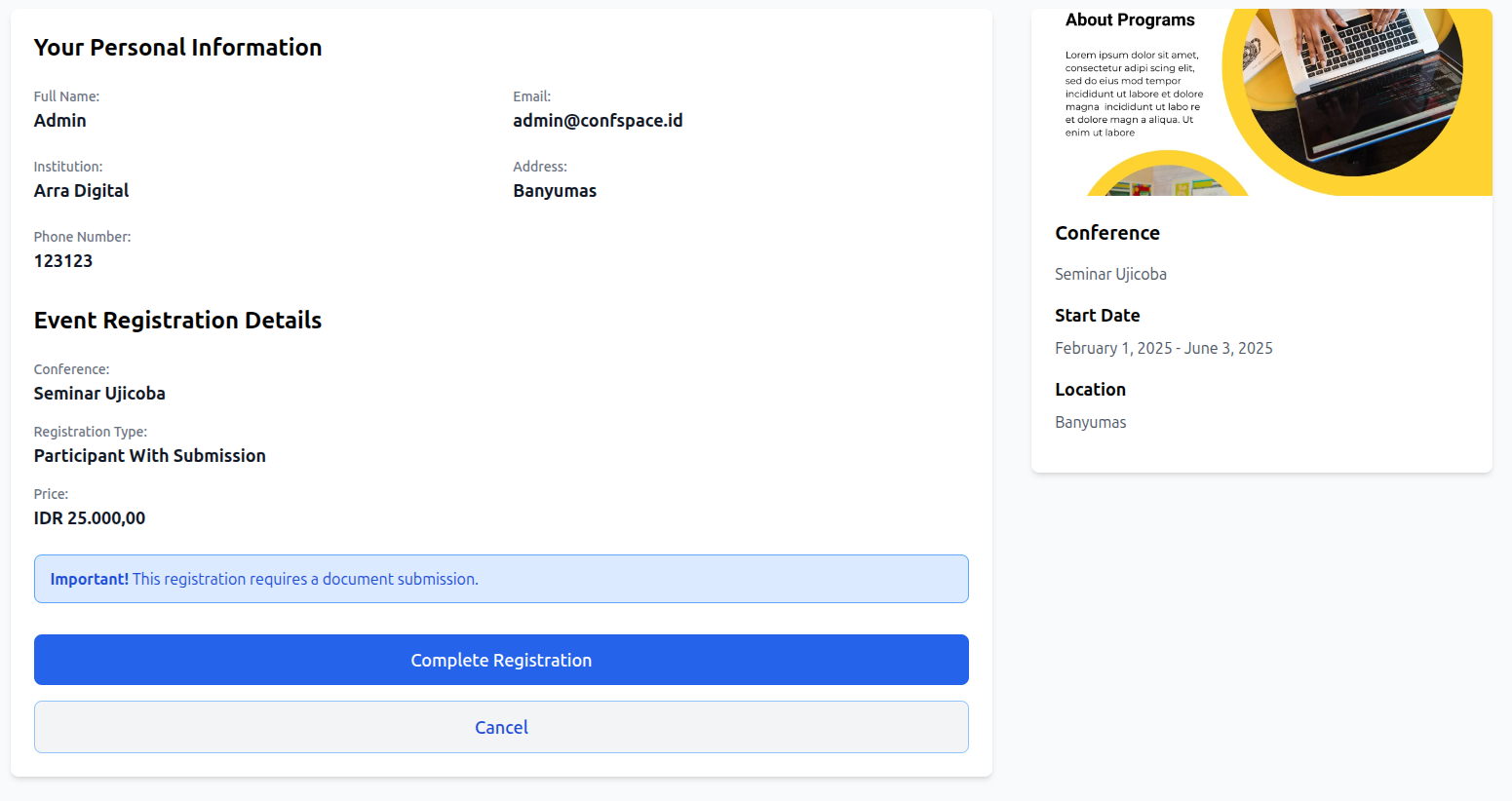
Screenshot: Conference registration form with type selection
4 Managing Your Registrations
You can view and manage all your registrations from the registration dashboard:
- Access your registrations via the main navigation menu
- Search through your registrations by conference name or path
- View registration status and details
- Delete draft registrations if needed
Registrations are sorted by date, showing the most recent first. You can only delete registrations in draft status.
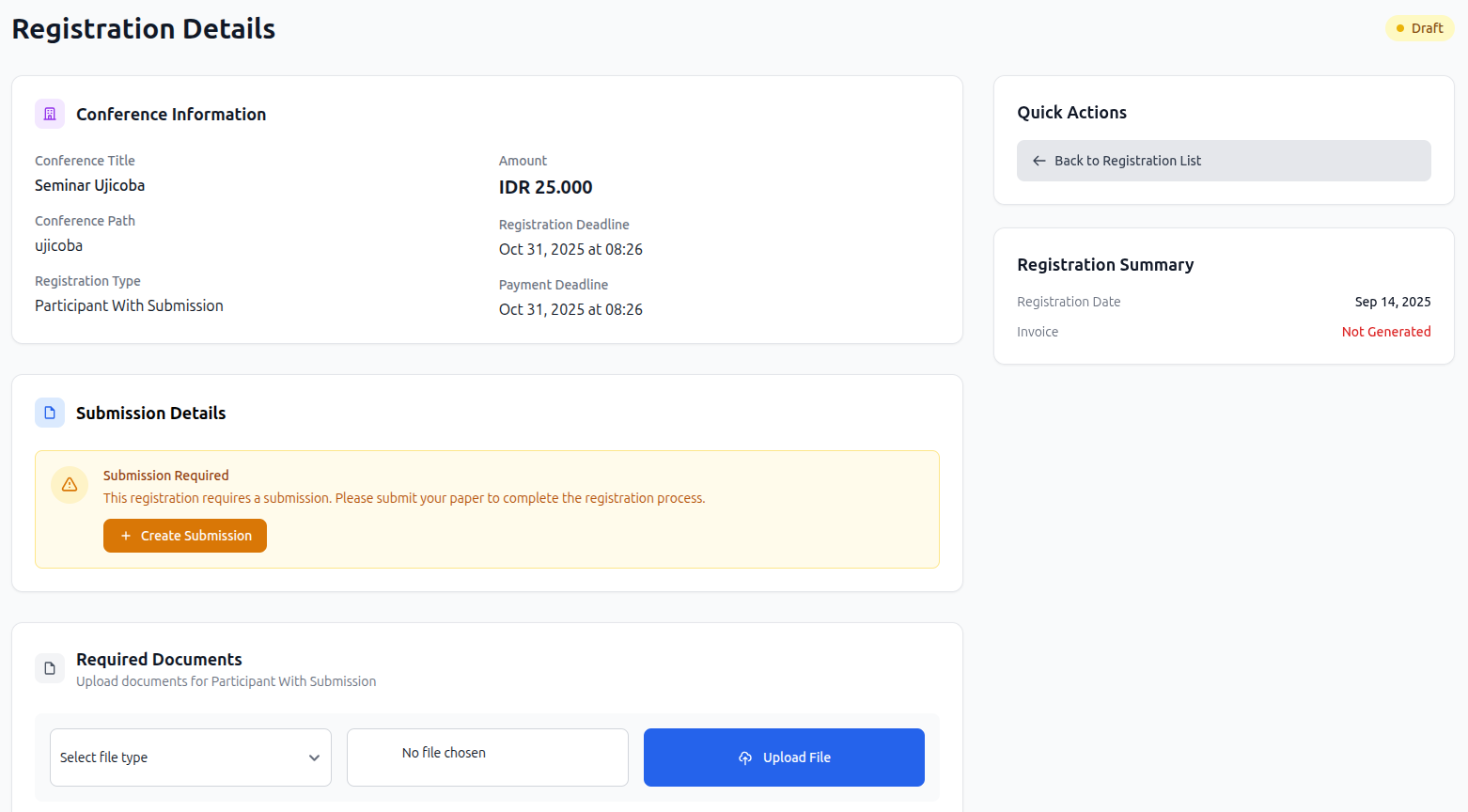
Screenshot: Registration dashboard with search functionality
5 Uploading Required Files
Many conferences require you to upload supporting documents:
- Go to your registration details page
- Scroll to the "Required Files" section
- Select the appropriate file type
- Choose your file (maximum 10MB)
- Click "Upload" to submit the file
File size limit is 10MB. Supported formats vary by conference requirements.
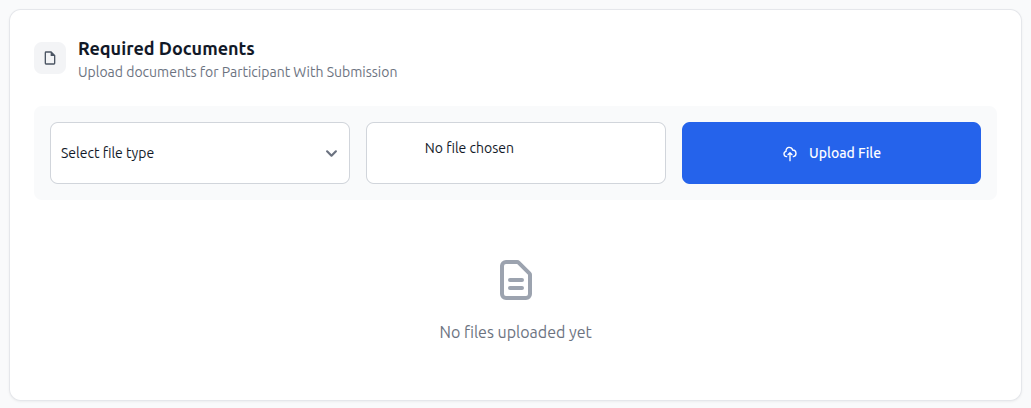
Screenshot: File upload interface on registration details page
6 Requesting Verification
Once you've completed your registration and uploaded all required files:
- Ensure all required files are uploaded
- If the conference requires submission, create your submission first
- Click "Request Verification" button
- Wait for the conference manager to review your registration
You'll receive notifications when your registration status changes. Both you and the conference manager will be notified of the verification request.

Screenshot: Request verification button and status display
7 Managing Files
You can manage your uploaded files through the registration details page:
- Download: Click the download button to retrieve your uploaded files
- Delete: Remove files that are no longer needed or need to be replaced
- Re-upload: Upload a new version by first deleting the old file, then uploading the new one
You can only manage files for registrations you own. File operations may not be available once registration is processed.
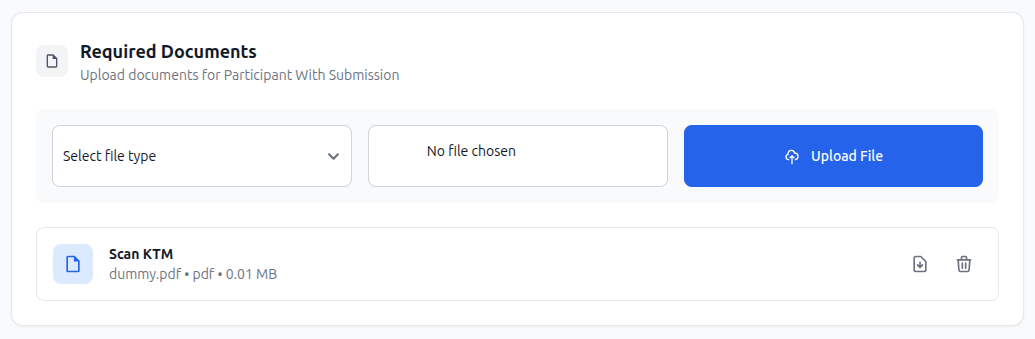
Screenshot: File management with download and delete options
Need More Help?
If you need additional assistance with the registration process:
- Contact the specific conference organizers through their conference page
- Check the conference FAQ section for common questions
- Review the Paper Submission guide if your conference requires a submission
- Use the contact form on confspace.id for platform-related issues