Invoice & Payment Guide
Step-by-step guide to generate an invoice and pay for your registration on confspace.id
1 Prerequisites
Before you can pay, you need:
- A completed registration for a conference
- A registration type that has a fee greater than zero
Free registrations (fee of 0) do not require an invoice, so the payment step is skipped.
2 Generating an Invoice
Start the payment process from your registration:
- Open your registration details page from My Registrations
- Click Generate Invoice
- Review the registration summary, deadlines, and total amount
- Select a payment method to continue
Each registration has a single invoice. If an invoice already exists, you are taken straight to it.
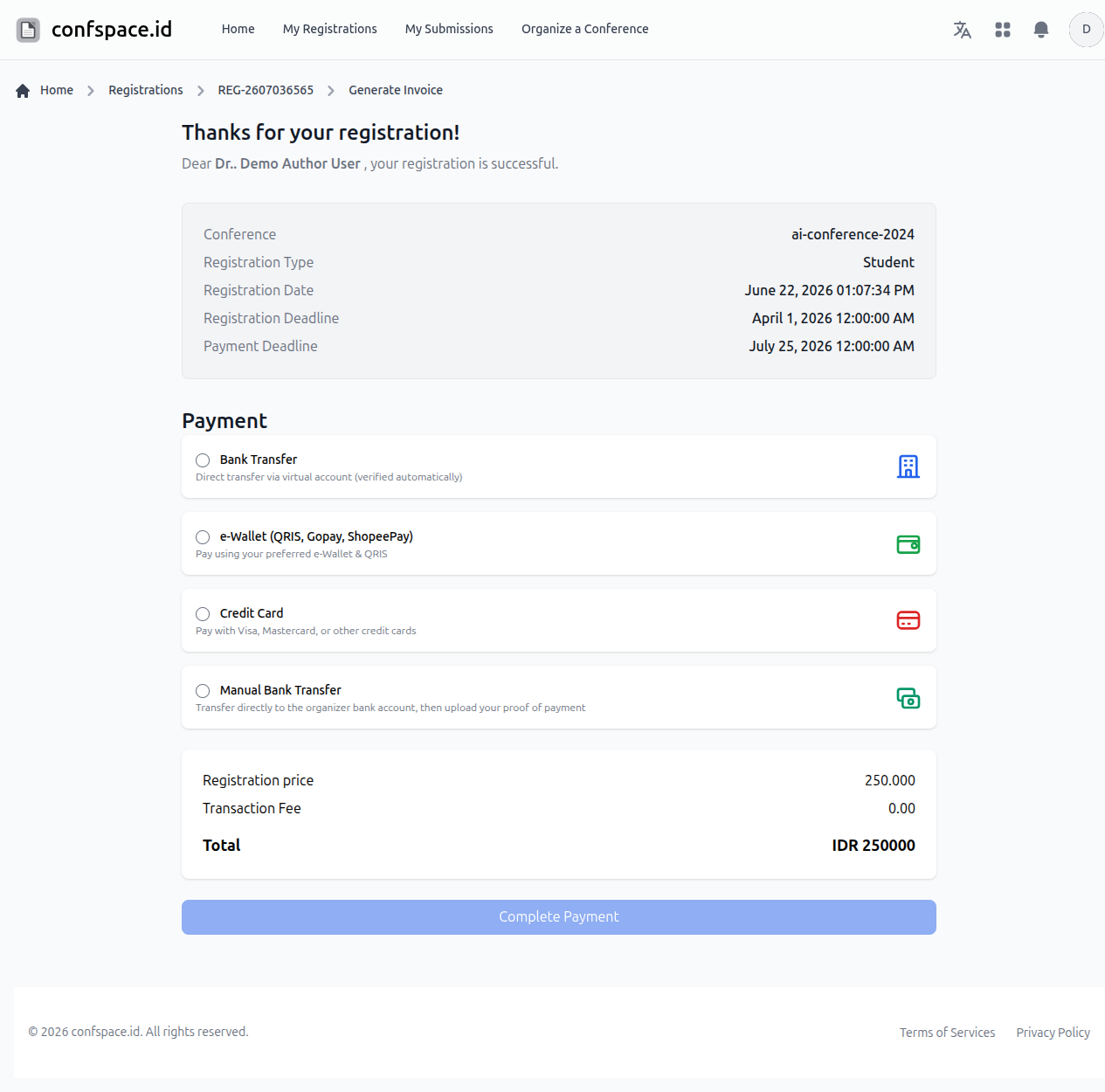
Screenshot: Choosing a payment method when generating an invoice
3 Choosing a Payment Method
The organizer decides which payment methods are available for each conference. You may see any of the following:
- Bank Transfer Virtual account transfer that is verified automatically. A small transaction fee applies.
- e-Wallet / QRIS Pay with your preferred e-Wallet or by scanning a QRIS code. A percentage-based fee applies.
- Credit Card Pay with Visa, Mastercard, or other credit cards. A percentage-based fee applies.
- Manual Bank Transfer Transfer directly to the organizer's bank account and upload your proof of payment. No transaction fee.
The total updates to include the transaction fee for the method you pick. Manual Bank Transfer has no added fee. Click Complete Payment once you've chosen.
4 Paying Online
For Bank Transfer, e-Wallet/QRIS, and Credit Card, payment is handled through our secure payment gateway:
- On the invoice page, click Generate Payment
- Click Pay Now to open the secure payment window
- Follow the instructions for your chosen method to complete the payment
- Once confirmed, your invoice status automatically changes to PAID
Online payments are verified automatically — you don't need to upload any proof.
5 Paying by Manual Bank Transfer
If you chose Manual Bank Transfer, the invoice page shows the organizer's bank account and a form to upload your proof of payment:
- Transfer the exact total to the Bank, Account Number, and Account Name shown
- Save a screenshot or receipt of your transfer
- Under Upload proof of payment, choose your file (JPG, PNG, or PDF, max 5MB)
- Click Upload Proof
- Wait for the organizer to verify your payment — the status changes to PAID once approved
Manual transfers are verified by the organizer, not automatically. You can re-upload a new file if you uploaded the wrong proof before it is verified.
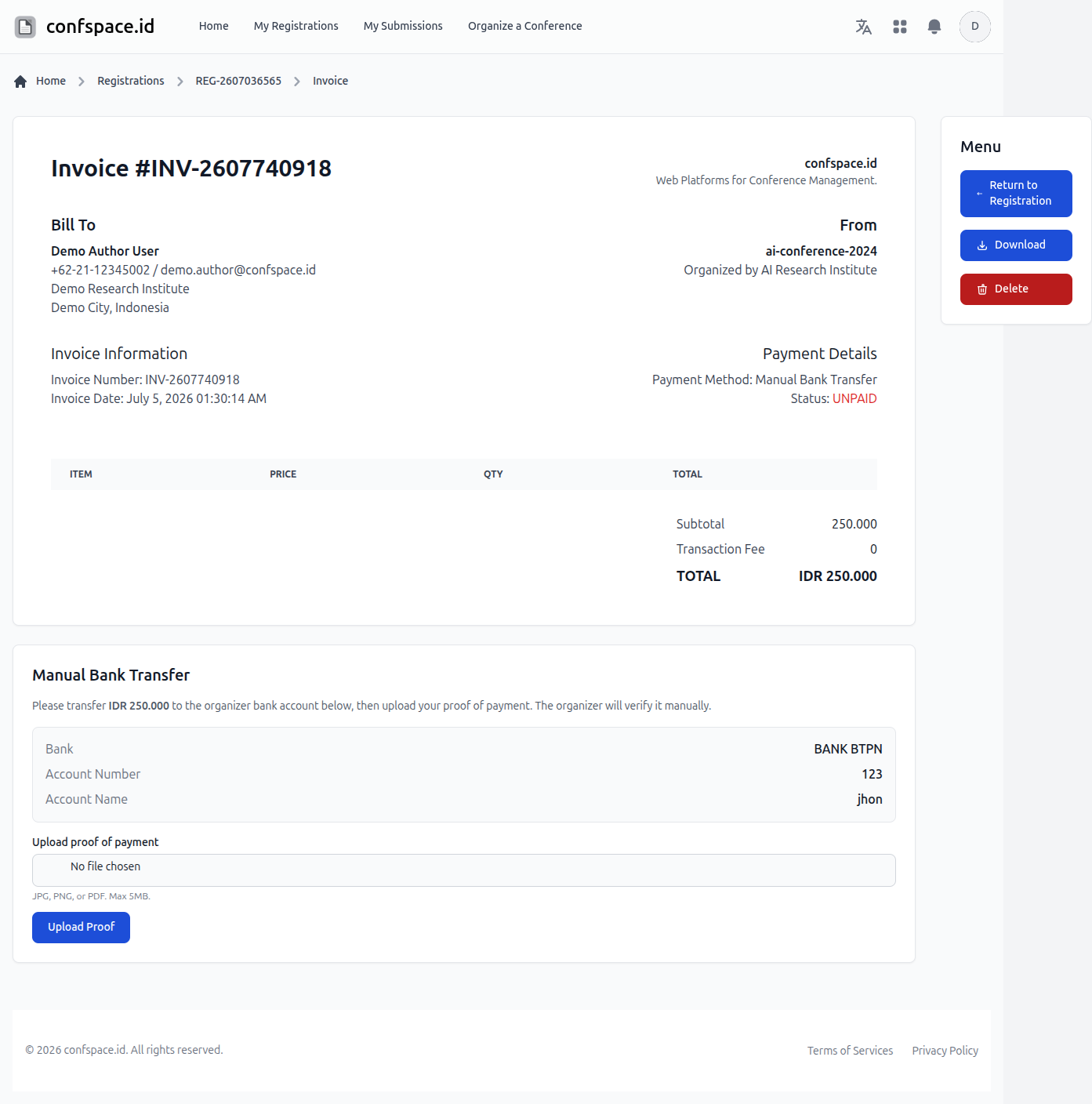
Screenshot: Invoice with bank account details and proof-of-payment upload
6 Downloading Your Invoice
You can save a PDF copy of your invoice at any time:
- Open the invoice page
- In the Menu panel, click Download
- The invoice PDF is generated for you to save or print
7 Managing an Unpaid Invoice
While an invoice is still unpaid you can:
- Delete the invoice if you want to start over or change payment method
- Re-generate the invoice with a different method after deleting
A paid invoice cannot be deleted. If your invoice has expired, delete it first and then generate a new one to pay again.
8 Giving Feedback
After your invoice is marked PAID, you can share your experience:
- Open the paid invoice
- Click Give Feedback in the Menu panel
- Choose a star rating and add an optional comment
- Submit — you can update your feedback later if needed
Feedback can only be submitted for paid invoices and helps organizers improve future events.
Need More Help?
If you need additional assistance with payment:
- Contact the conference organizers through their conference page, especially for manual transfer verification
- Review the Conference Registration guide for registration steps
- Use the contact form on confspace.id for platform-related issues