Reviewer Guide
Step-by-step guide to reviewing submissions on confspace.id
1 How You Are Invited to Review
Conference managers invite reviewers for individual submissions. When you are assigned:
- You receive an email containing a private review link
- The link opens the review page directly — no account or login is required
- If you do have an account, the assignment also appears under My Reviews
Keep your review link private. Anyone with the link can view the submission and submit the review on your behalf.
2 Finding Your Review Assignments
If you are signed in, open My Reviews from the main navigation to see every submission you were invited to review:
- Each row shows the submission, conference, and due date
- The Status is Pending until you submit, then Completed
- Your chosen recommendation appears once the review is done
- Click Open Review to start, or View Review to see a completed one
The My Reviews menu only appears once you have at least one review assignment. Pending reviews are shown first and sorted by their due date.
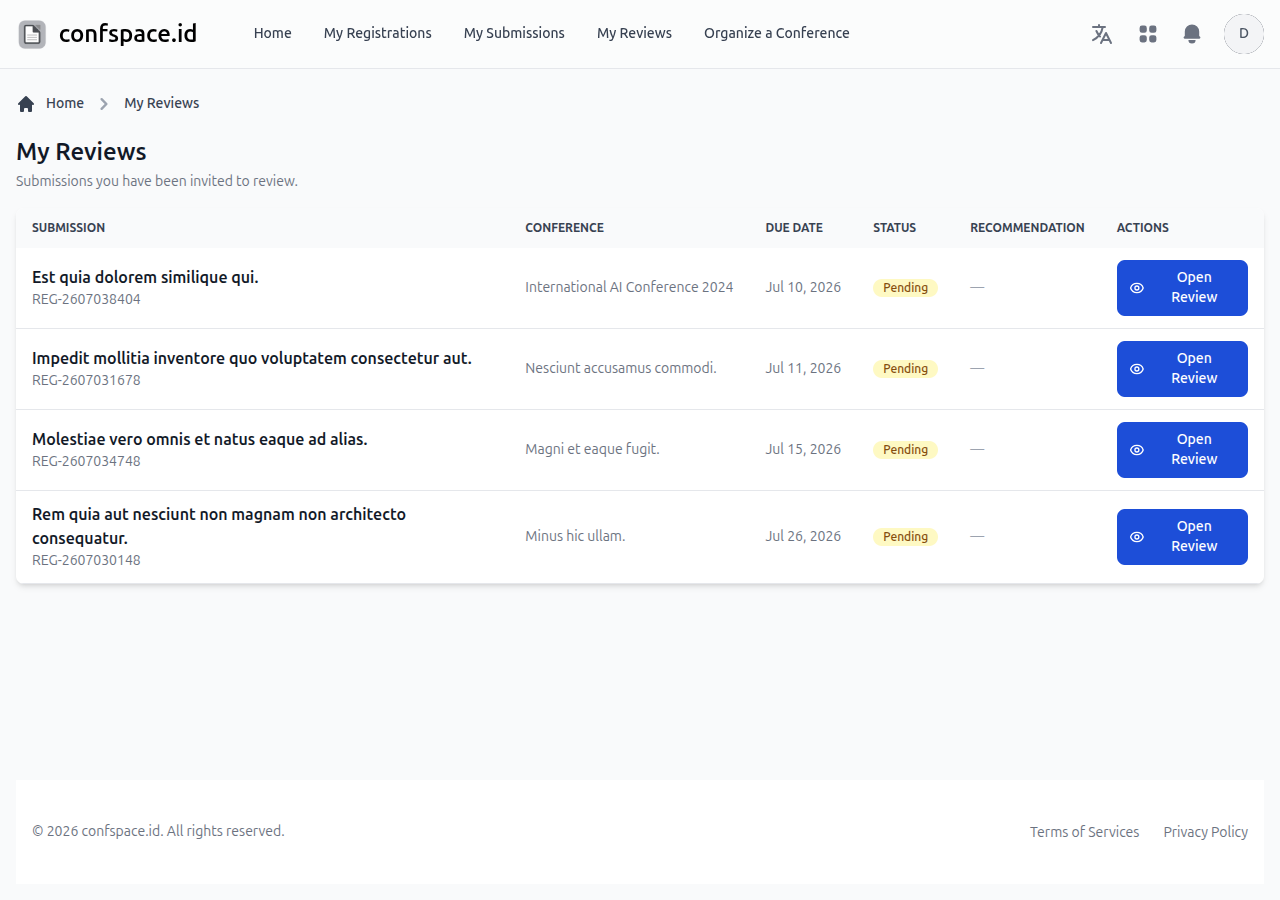
Screenshot: My Reviews dashboard with due dates and status
3 Opening a Review
Open the review page either from the emailed link or by clicking Open Review in My Reviews. The page brings the paper, its files, and the review form together in one place.
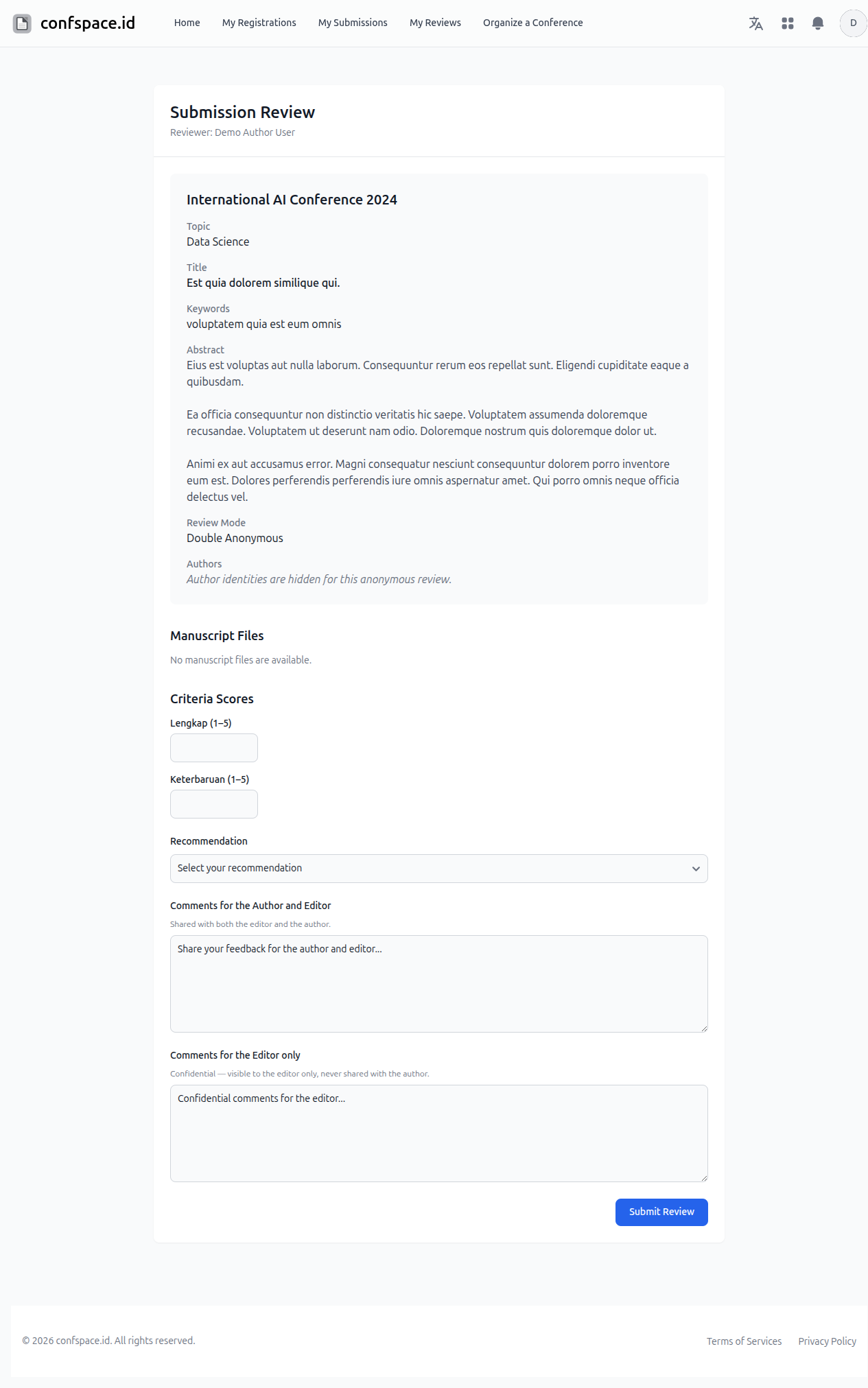
Screenshot: The review page with paper details, criteria scores, recommendation, and comments
4 Reading the Paper
The top of the page summarises the submission so you can assess it:
- Topic, Title, Keywords, and the full Abstract
- The Review Mode for this conference
- Authors — shown only when the review is not anonymous
In a Double Anonymous review, author identities are hidden so you can assess the work impartially. Please avoid guessing or naming the authors in your comments.
5 Accessing Manuscript Files
In the Manuscript Files section you can read the full paper:
- Preview opens a PDF in a new browser tab
- Download saves the file to your device
If no files are listed, the author may not have uploaded a manuscript yet. Contact the conference manager if you need the paper to complete your review.
6 Scoring the Criteria
If the conference defined review criteria, each one appears in the Criteria Scores section:
- Read the criterion label and its description
- Enter a whole number within the allowed range shown next to it (for example 1–5)
- Score every criterion — all scores are required to submit
A score outside the allowed range, or a missing score, will stop the form from submitting until it is corrected.
7 Choosing a Recommendation
Select the overall Recommendation that best reflects your assessment:
- Accept Submission The paper is ready to be accepted as is.
- Revisions Required The paper needs changes before it can be accepted.
- Decline Submission The paper is not suitable for this conference.
A recommendation is required. The conference manager uses it, together with any other reviewers, to make the final decision.
8 Writing Your Comments
There are two separate comment boxes, each with a different audience:
- Comments for the Author and Editor — shared with both. Use this for constructive feedback that helps the author improve the paper.
- Comments for the Editor only — confidential. Only the editor sees this; it is never shared with the author.
Double-check which box you are typing in before submitting — anything in the author box is visible to the author.
9 Submitting Your Review
When your scores, recommendation, and comments are ready, click Submit Review.
- The conference manager is notified that your review is complete
- Your assignment status changes to Completed in My Reviews
- The review becomes read-only — you can revisit the page to view what you submitted, but it can no longer be edited
Since a submitted review cannot be changed, make sure your scores and comments are final before you submit.
Need More Help?
If you run into any trouble while reviewing:
- Contact the conference manager who invited you — especially if a file is missing or a link has expired
- Use the contact form on confspace.id for platform-related issues